
From 27 September 2026, every trader selling goods to consumers in the EU must show the harmonised notice on the legal guarantee of conformity, and — where a producer offers a free durability guarantee longer than two years — the harmonised GARAN label. Both are fixed by Implementing Regulation (EU) 2025/1960: the artwork cannot be redesigned, recoloured or paraphrased.
This guide walks the whole setup on a Shopify store, screen by screen. No theme code, no developer. If you already know the law and just want the clicks, start at Step 1.
Time
About 5 minutes
Cost
Free plan covers the notice
Theme code
None — app embed and blocks
Deadline
27 September 2026
What you are installing
Two different things, with two different triggers. Getting this distinction right is most of the work.
| Legal guarantee notice | GARAN durability label | |
|---|---|---|
| Legal basis | Annex I of Reg. (EU) 2025/1960 | Annex II of Reg. (EU) 2025/1960 |
| Applies to | Every good sold to EU consumers | Only goods with a free producer guarantee of durability longer than 2 years |
| Per product? | No — it is the same notice everywhere | Yes — it carries that product’s duration |
| Where it goes | Product page, before the purchase | Next to the product image |
| In this app | App embed, or the “EU guarantee notice” block | “GARAN durability label” block + a duration per product |
What the app decides, and what you decide
The app displays the official artwork, in the shopper’s language, where you place it. It does not decide whether a given producer guarantee qualifies as a commercial guarantee of durability under Article 2(14a) of Directive 2011/83/EU — that judgement is yours, and it is the one thing worth ten minutes of thought before you start.
Before you start
- A published Online Store 2.0 theme (Dawn and every theme published since 2021). App embeds and app blocks live in the theme editor; vintage themes need the manual route in the last section.
- Your product data: which products carry a producer guarantee, and for how many years. A spreadsheet is enough — you can also assign durations in bulk by collection or vendor.
- Your published storefront languages. The notice follows the shopper’s language automatically, but only published locales resolve to their own artwork.
Step 1 — Install the app
Install Conforma: EU Guarantee Label from the Shopify App Store. Shopify shows the permission screen; the app asks to read products and to write its own metafields ($app:garan), which is where guarantee durations are stored. It never touches prices, orders or customers.
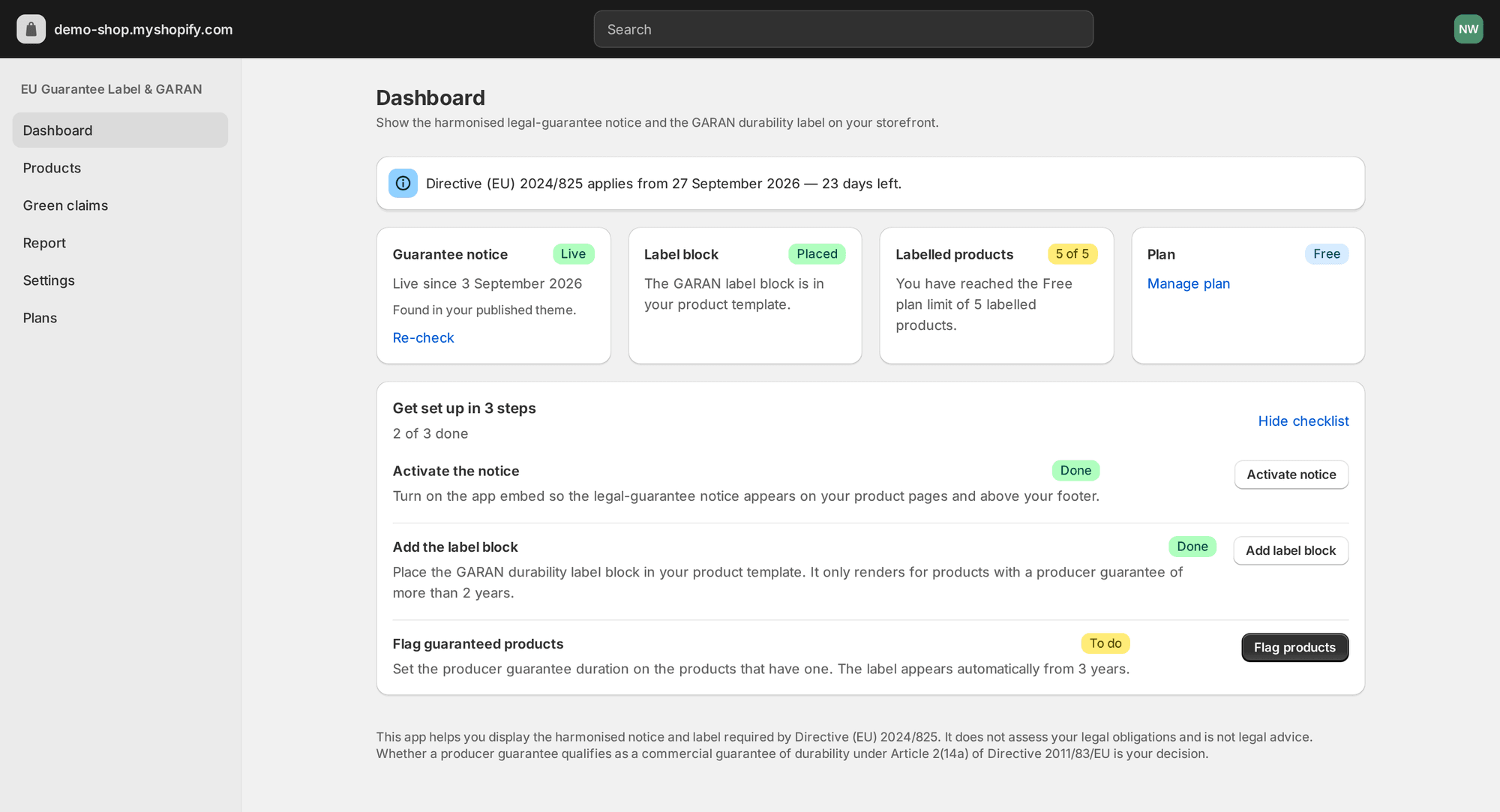
After install you land on the dashboard. Four status cards read your live storefront, and a three-step checklist tells you exactly what is still missing — on a fresh install, everything:
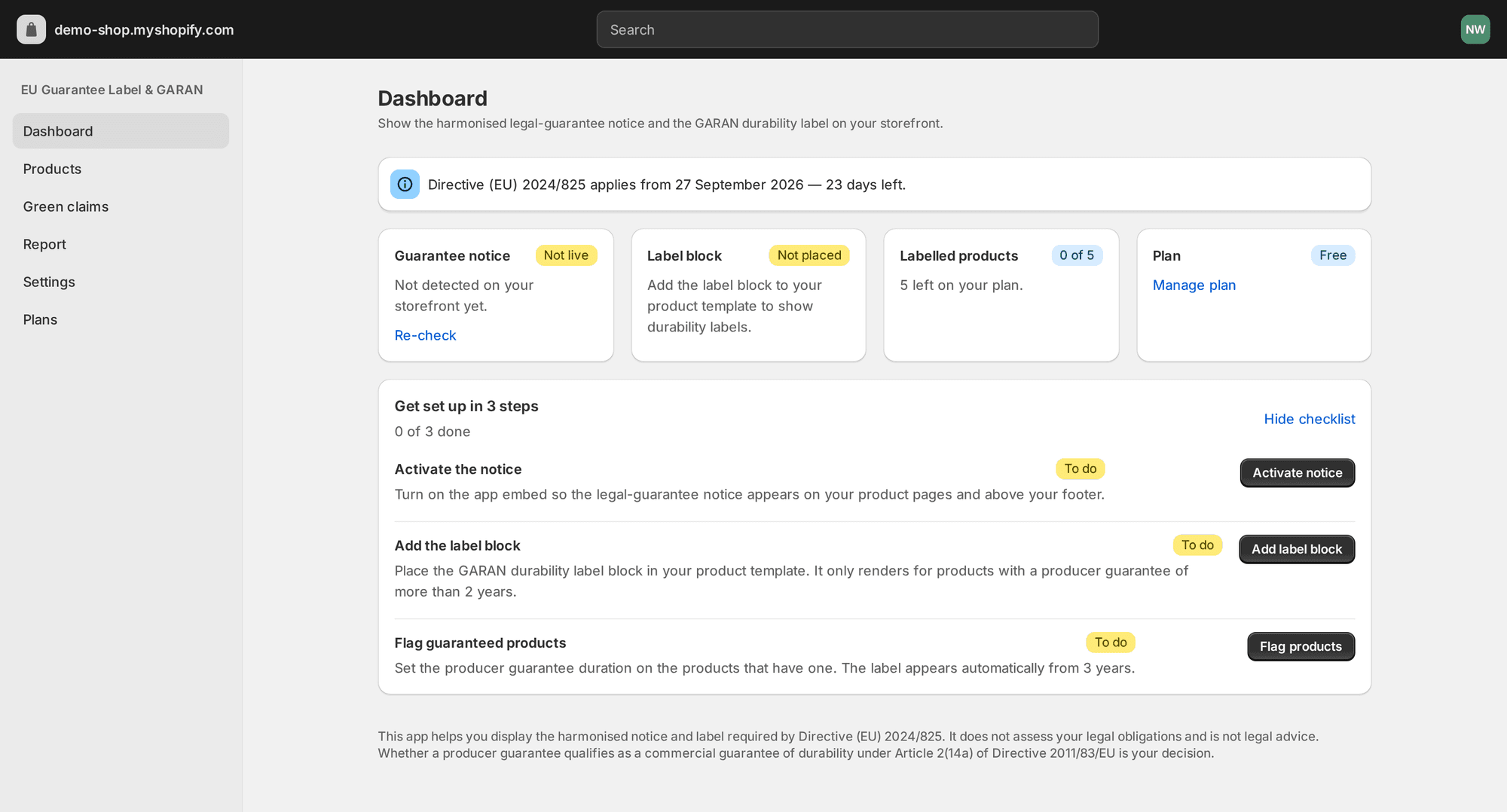
The countdown at the top is not decoration — it is the date the obligation starts, and the cards below it are checked against your published theme, not against what you remember doing.
Step 2 — Turn on the notice
Click Activate notice on the checklist. That opens your theme editor with the app embed pre-selected, so the only thing left is the toggle.
The embed is called “EU guarantee notice (automatic)”. Turned on, it places the harmonised notice below the add-to-cart form on product pages and adds a one-line reminder above your footer.
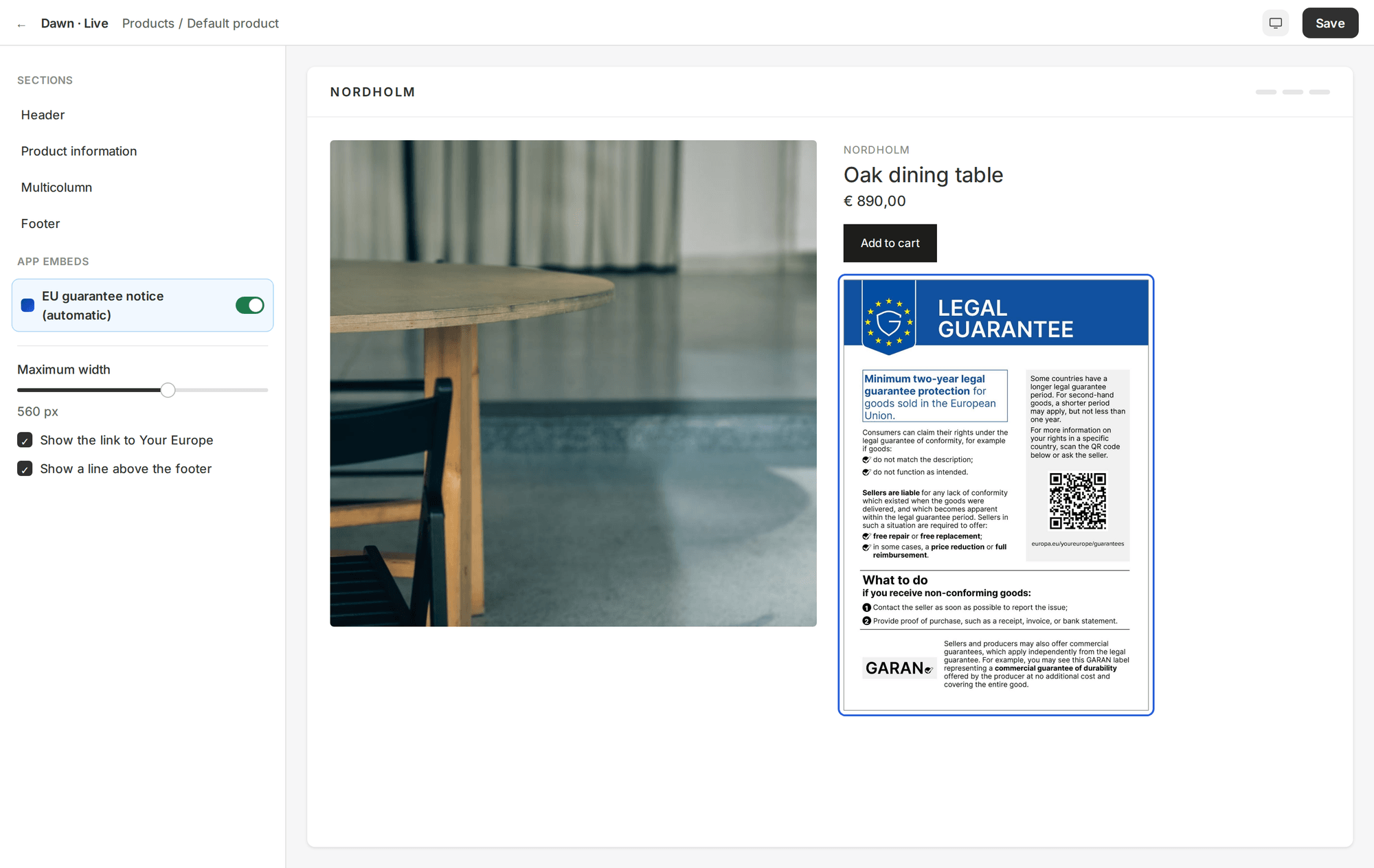
Four settings, all optional:
- Maximum width — how wide the notice renders, 320–800 px. 560 px suits most product columns.
- Show the link to Your Europe — adds a link to the Commission’s consumer-rights page in the shopper’s language.
- Only show to EU/EEA shoppers — uses the market country from Shopify Markets.
- Show app attribution — the small credit line under the notice.
Click Save in the theme editor. Back in the app, the Guarantee notice card flips to Live once it finds the embed in your published theme; if you saved to a draft theme, publish it or use Re-check.
Prefer to place it yourself?
There is a second option: the “EU guarantee notice” app block, which you drop into the product template like any other block — server-rendered, no JavaScript, and you control exactly where it sits. Use the embed or the block, not both. If both are active, the embed detects the block’s markup and skips its own insertion, but the footer line still comes from the embed.
Step 3 — Add the GARAN label block
Skip this step if no producer offers you a durability guarantee longer than two years — most apparel and consumable shops never need it.
If some products do carry one, open the theme editor on your product template, choose Add block, and pick GARAN durability label under Apps. Drag it next to the product image, which is where Annex II expects it.
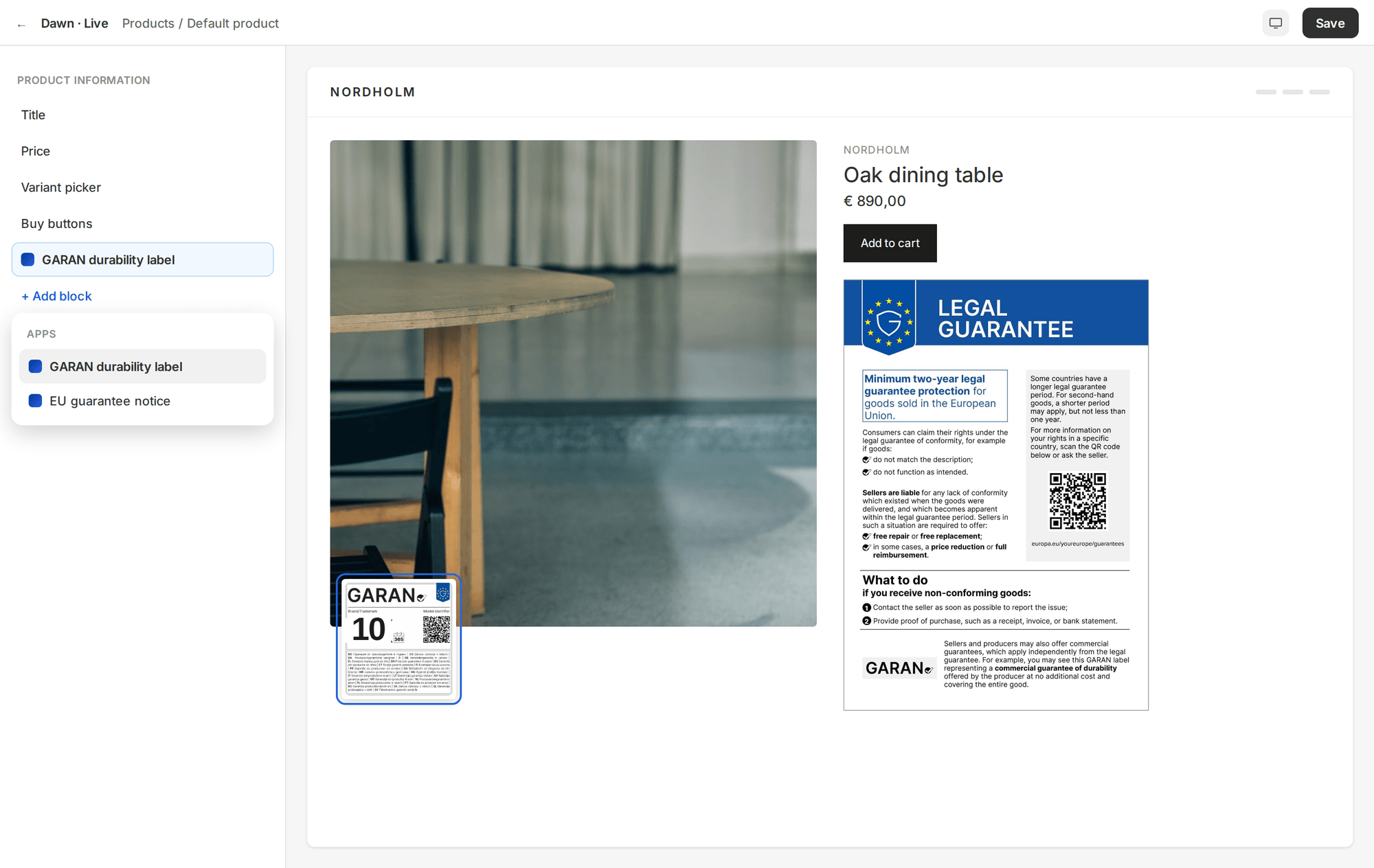
The block has two settings: Placement (inline, badge top-left, badge top-right) and Label size. It renders nothing at all on products without a qualifying duration, so it is safe to leave in the template for your whole catalogue.
Step 4 — Set the guarantee durations
Open Products in the app. Every product gets one number: the duration in years of the producer’s commercial guarantee of durability. Values above 2 make the label appear; 2 or less means the product shows the legal-guarantee notice only.
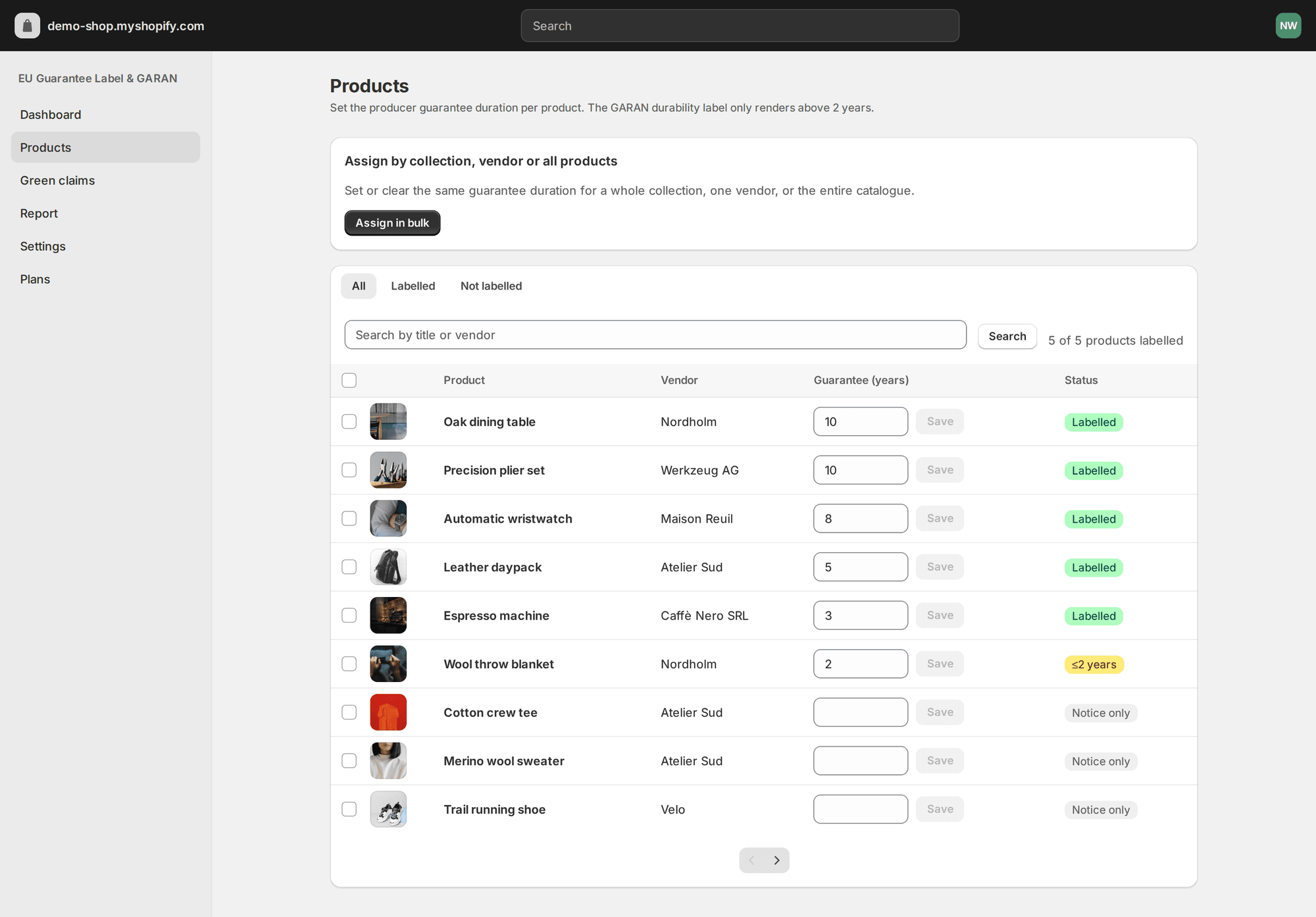
Three ways to fill this in:
- Row by row — type the number, hit Save. Fine for a handful of products.
- Select and bulk-set — tick several rows, then Set years… from the bulk bar.
- Assign by collection, vendor or all products — for catalogues where a whole vendor shares one guarantee. Available on the Complete plan.
On the Free plan
The Free plan labels your first five products (the notice itself is unlimited and free forever). The dashboard card shows 5 of 5 when you hit that cap, and bulk assignment tells you how many products were skipped rather than failing silently.
Step 5 — Check your languages
The notice exists in all 24 official EU languages, and the app serves the version matching the storefront language — that is the whole point of shipping the artwork rather than a translation of it.
Open Settings → Languages to see how each of your published locales resolves:
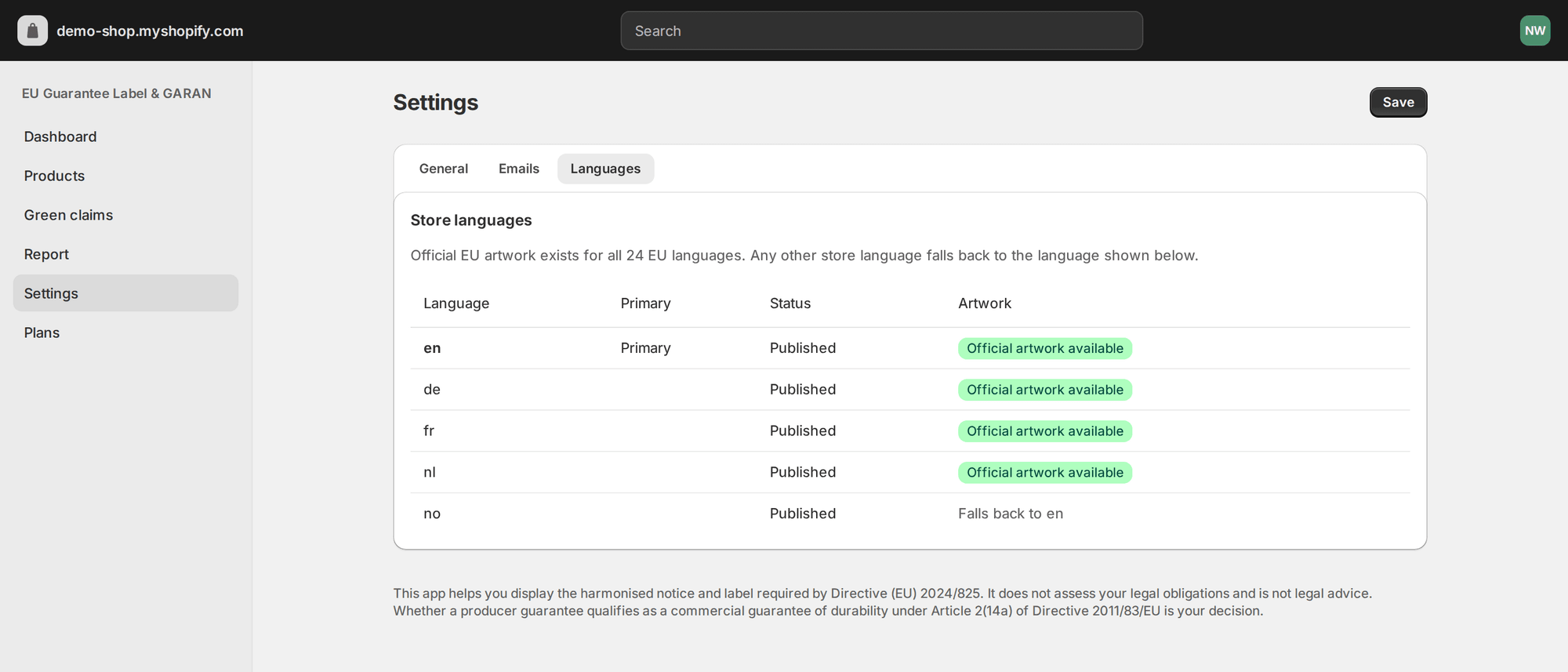
Resolution is exact locale → base language → shop primary → English. So de-AT gets the German notice, and a storefront language outside the EU 24 (say Norwegian) falls back to your primary language rather than showing nothing.
The GARAN label is deliberately language-neutral: element (V) of the official artwork already lists the phrase “producer guarantee in years” in all 24 languages, so one file serves every market.
Step 6 — Review the placement settings
Settings → General holds the three decisions that change what shoppers see:
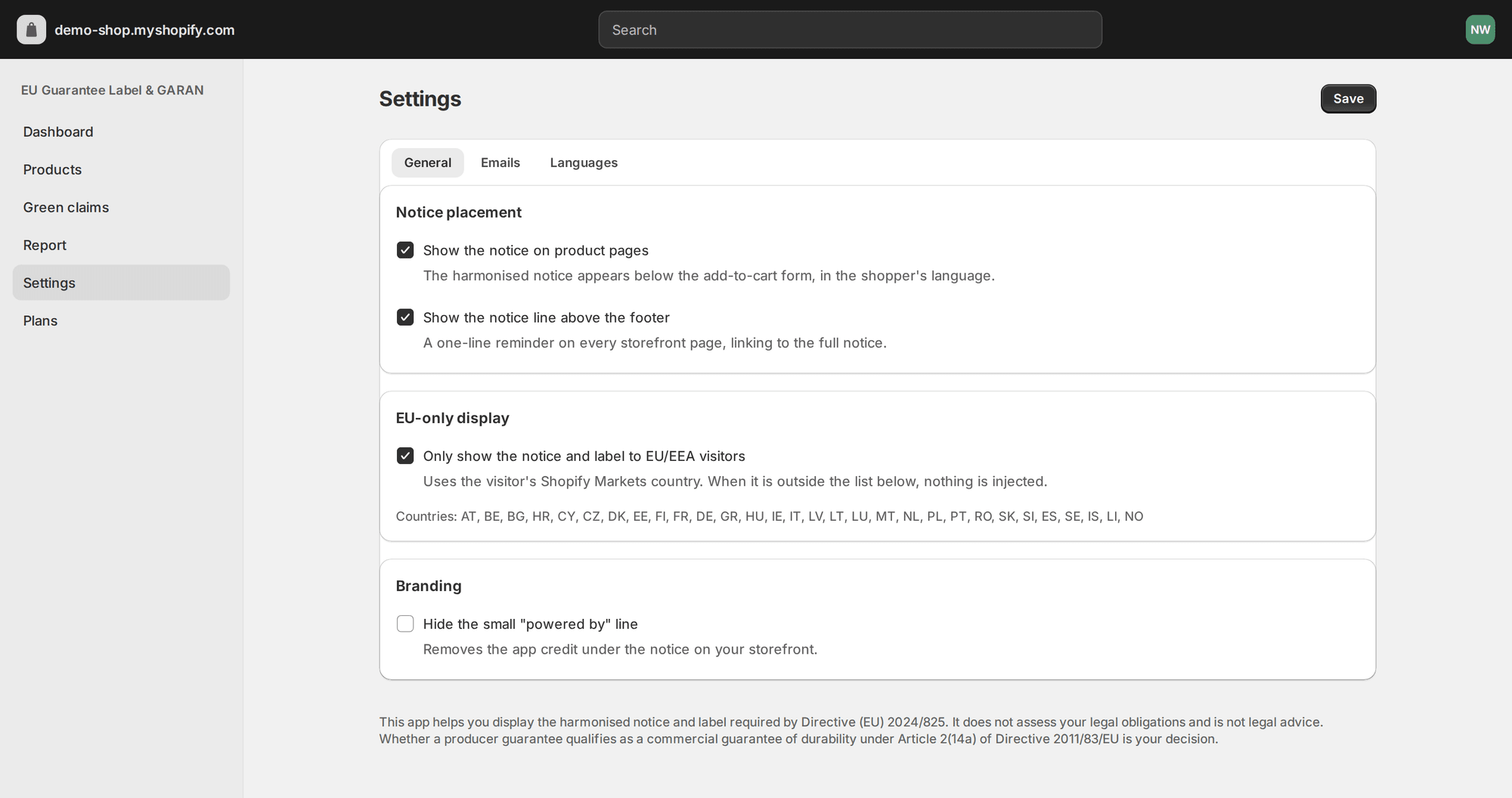
- Notice placement — product pages, the footer line, or both. Turn off the product placement if you added the notice block yourself in Step 2.
- EU-only display — restricts the notice and label to the 30 EU/EEA countries listed under the checkbox. Useful if the same store also sells into the UK or US. Leave it off if you are not sure: showing the notice to a non-EU shopper is harmless.
- Branding — hides the small “powered by” line.
These flags are mirrored into a shop metafield that the theme extension reads from Liquid, so a change takes effect on the next page render with no extra network call.
Step 7 — Add the notice to order emails
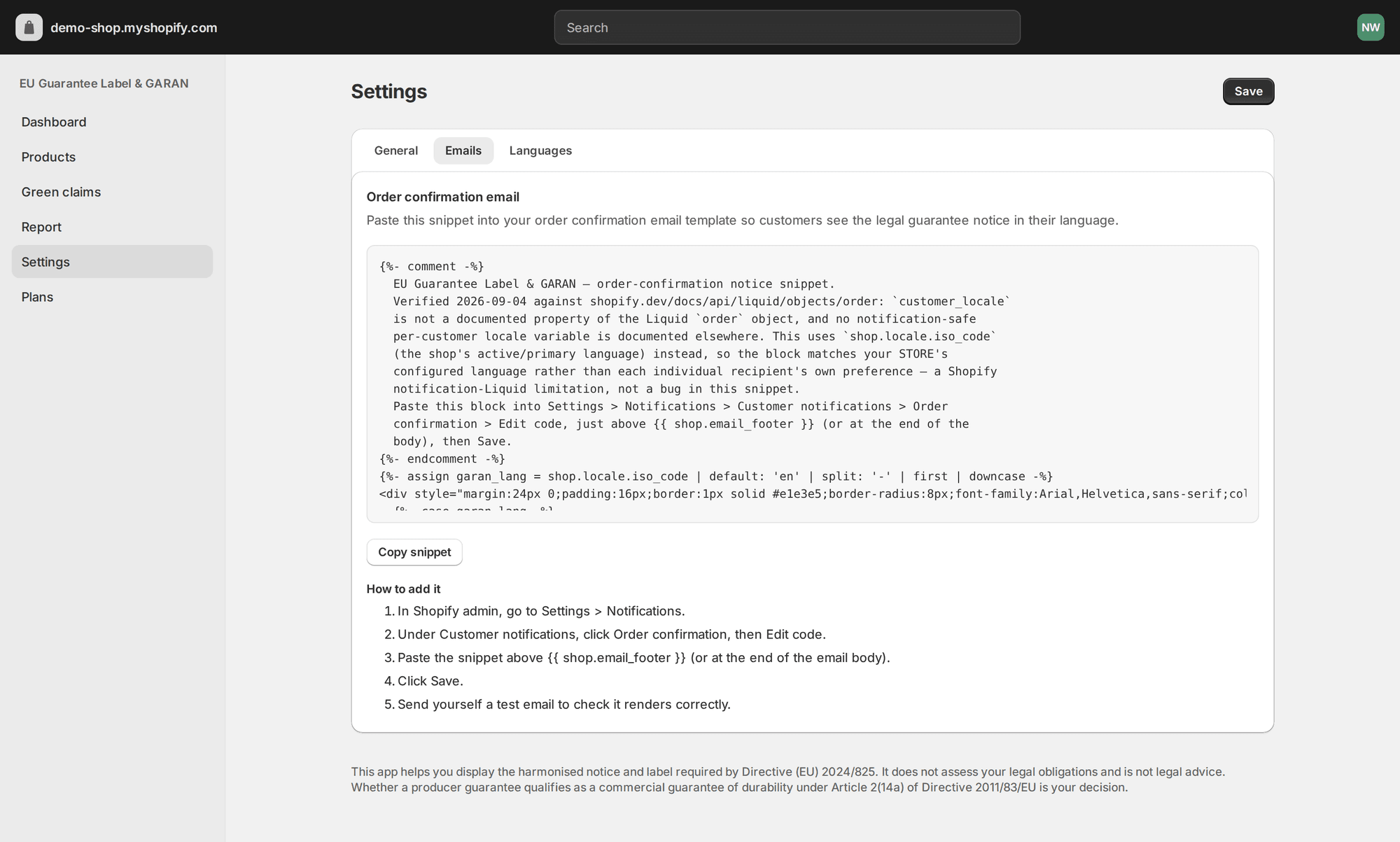
Not strictly required for an online sale, but it removes any argument about whether the information was given before the contract. Settings → Emails generates a snippet with your shop’s language already wired in; paste it into Settings → Notifications → Order confirmation in Shopify admin.
Step 8 — Verify on the storefront
Never trust the admin alone. Open your storefront in a private window and look at a real product page:
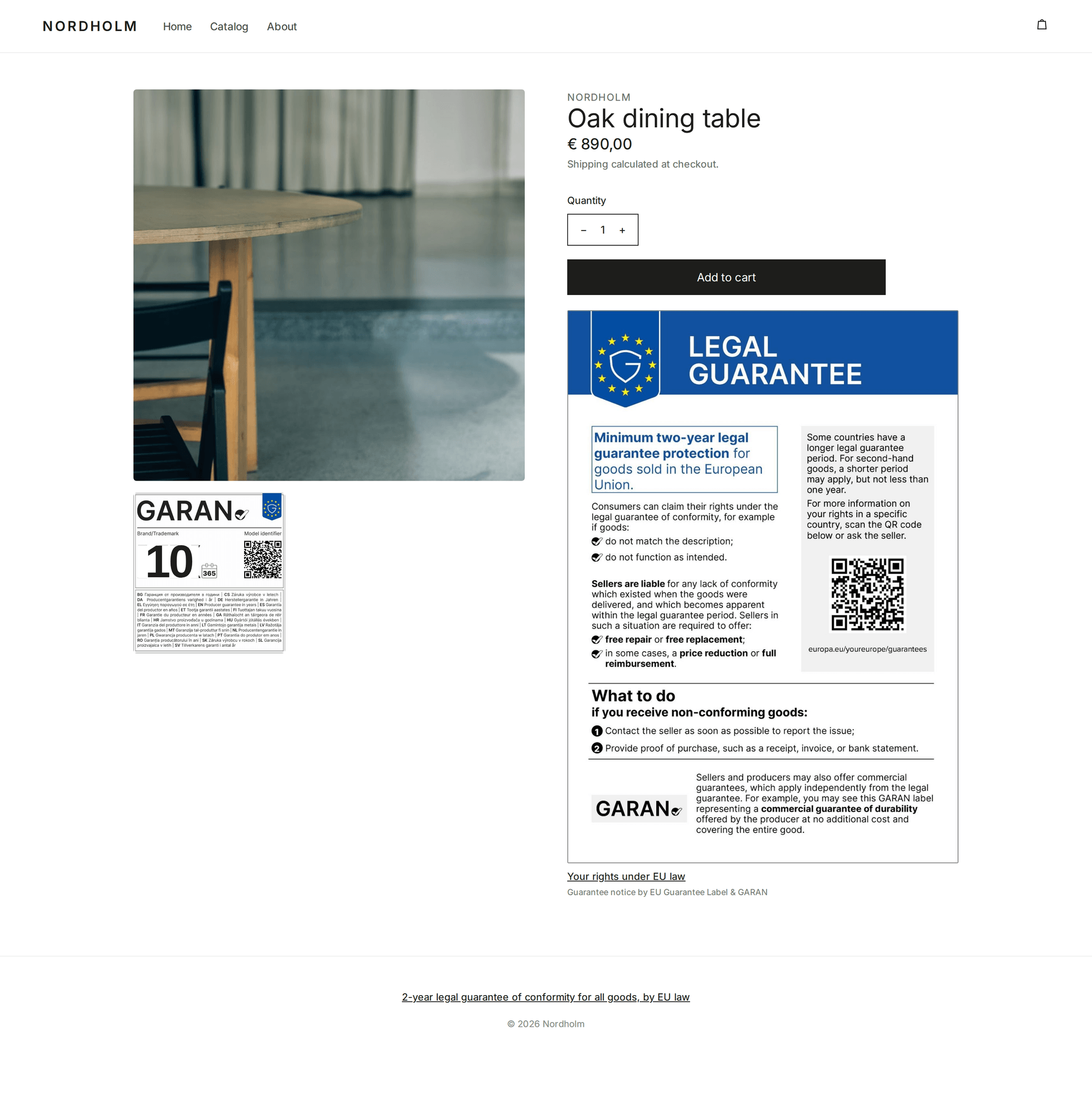
Check four things:
- The notice renders under the add-to-cart form, not below the reviews or off the bottom of the page.
- The GARAN label shows on a product you flagged, and does not show on one you left blank.
- Switching the storefront language switches the notice artwork.
- The footer line appears on a non-product page (a collection or the home page).
If the store is password-protected, the app cannot fetch it either — that is the most common reason for a dashboard card that stubbornly reads Not live.
Step 9 — Keep the record
Two features exist for the day someone asks what your store showed and when.
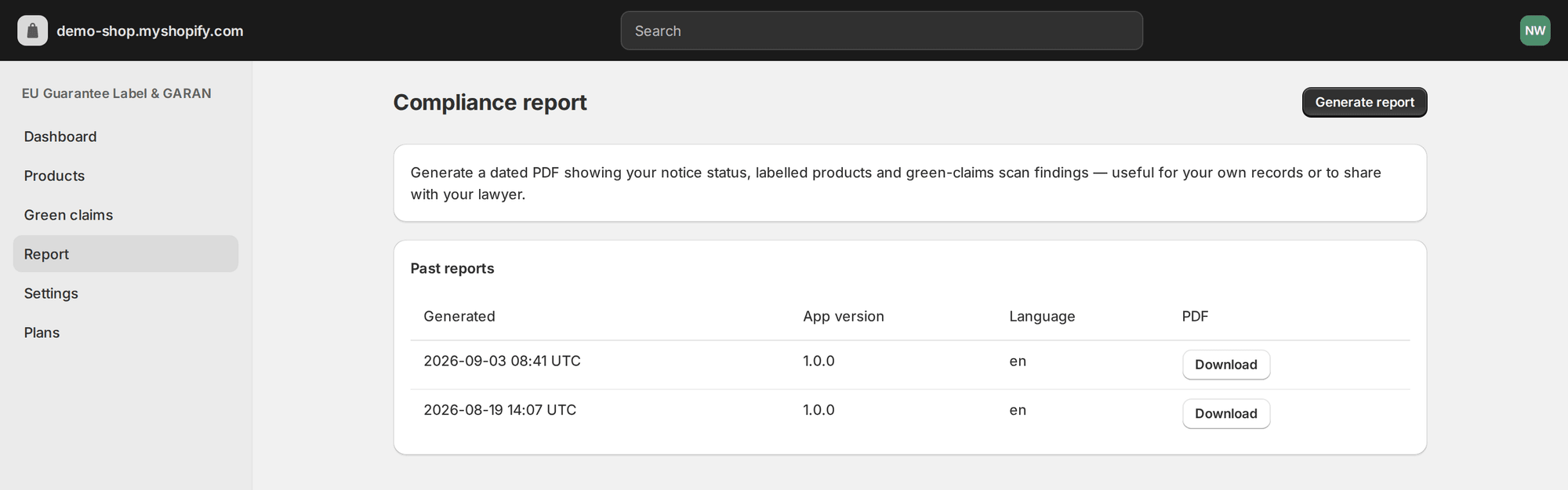
Report generates a dated PDF: notice status, labelled products, scan findings, app version. Keep it with your compliance paperwork or send it to your lawyer.
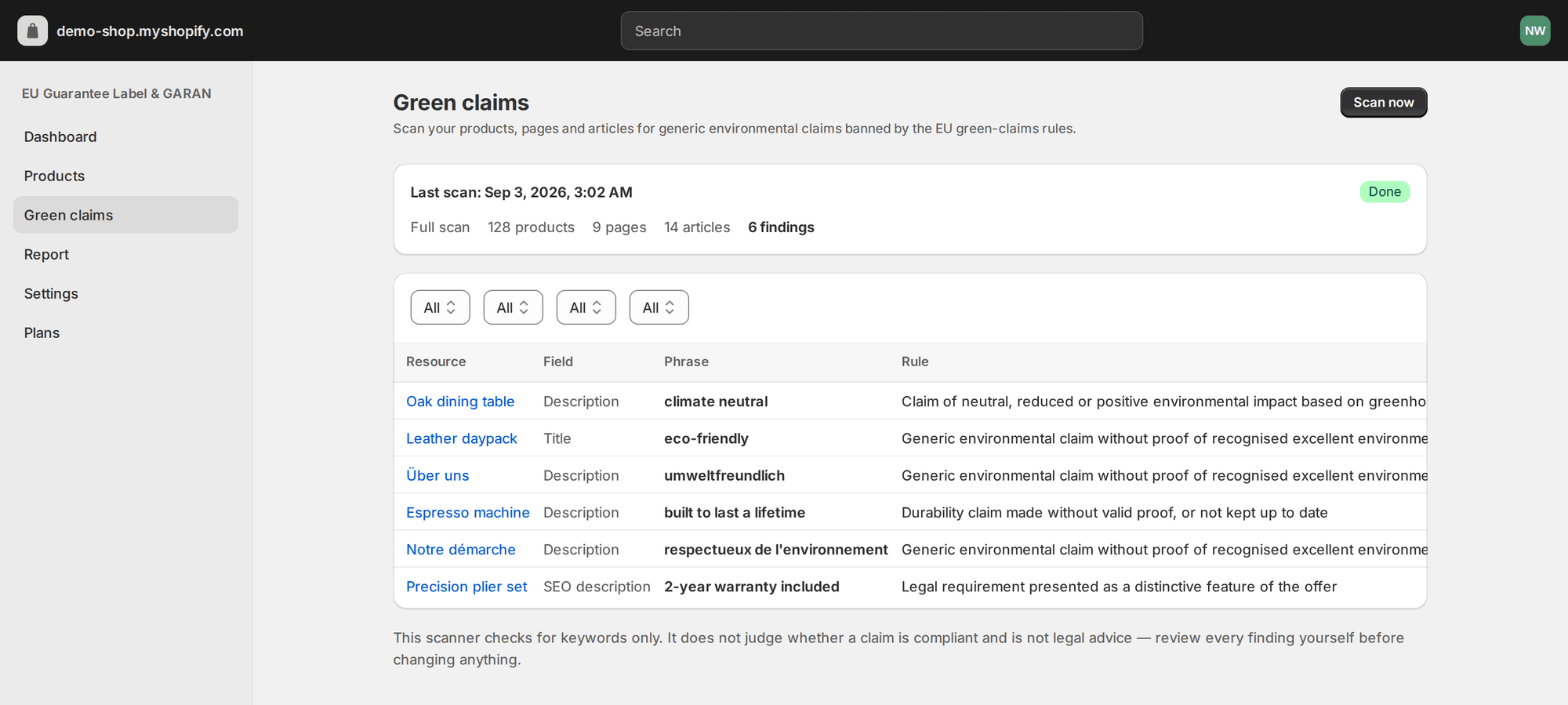
Green claims scans your products, pages and articles for the generic environmental claims the same directive bans — “eco-friendly”, “climate neutral”, “umweltfreundlich” — and points at each one with the rule it falls under. It is a keyword check, not a verdict: review every finding yourself.
Go-live checklist
Before 27 September 2026
- App embed on in the published theme — not a draft copy, and the dashboard card reads Live
- Notice visible on a product page — checked in a private window, not only in the theme editor
- Footer line visible on a non-product page — collection or home page
- GARAN label block in the product template — if any product carries a >2-year producer guarantee
- Durations set on every qualifying product — and blank on the ones that do not qualify
- Each published language checked — the artwork changes with the storefront locale
- Order confirmation email updated — optional, but it settles the timing question
- Generic green claims reviewed — the same directive bans them from 27 September
- Dated report saved — evidence of what was live, and when
Troubleshooting
| Symptom | Cause | Fix |
|---|---|---|
| Dashboard says Not live after saving | Saved to a draft theme, or the storefront is password-protected | Publish the theme or lift the password, then click Re-check |
| The notice appears twice | Both the app embed’s product placement and the notice block are active | Turn off Show the notice on product pages in Settings, or remove the block |
| The label does not show on a product | Duration is 2 or less, blank, or the Free plan’s 5-label cap is reached | Set a duration above 2, or upgrade for unlimited labels |
| The label shows nowhere at all | The GARAN block was never added to the product template | Theme editor → product template → Add block → GARAN durability label |
| Notice shows in the wrong language | The storefront locale is not published, so it falls back | Publish the locale in Shopify → Settings → Languages |
| Nothing renders for some visitors | EU-only display is on and the market country is outside the EU/EEA | Turn it off, or confirm the country in Shopify Markets |
| No App embeds section in the theme editor | Vintage (non-OS 2.0) theme | Switch theme, or use the manual route below |
| The notice is wider than the product column | Default 560 px max width | Lower Maximum width in the embed settings |
The manual alternative
You can do all of this by hand: download the official artwork for every language you sell in, add it to the product template, create a metafield for the guarantee duration, write the Liquid that shows the label only above two years, repeat for the cart page and for each theme, and re-check the files whenever the Commission revises a translation. Budget an afternoon if you are comfortable with Liquid — and see our explainer on the law itself for what the requirement actually says.
The app exists because that afternoon comes back every time you change theme.
Questions merchants ask during setup
Do I have to edit theme.liquid or any theme file?
No. The notice is an app embed and the label is an app block, both added through the theme editor. Nothing is written into your theme files, and uninstalling the app removes both.
How long does the setup actually take?
About five minutes for the notice, plus however long it takes you to decide which products carry a producer guarantee longer than two years. Bulk assignment by collection or vendor makes the second part fast for large catalogues.
I sell to the EU from outside the EU. Does this apply to me?
Yes. The obligation follows the consumer, not the seller: if you sell goods to consumers in an EU member state, you must show the harmonised notice, wherever your business is based.
Do I need the GARAN label if I do not offer any extra guarantee?
No. The label is only for goods where the producer offers, free of charge, a commercial guarantee of durability longer than two years. Every other product needs the notice alone.
Can I change the colours or wording to match my theme?
No, and no app may let you. The design and content of both graphics are fixed by Implementing Regulation (EU) 2025/1960; the app serves the official files unaltered and only draws the duration into the field the Regulation reserves for it.
Will it slow my product pages down?
The notice is one image with its intrinsic dimensions declared, lazy-loaded, and served from the Shopify CDN, so it reserves its own space and causes no layout shift. The label is a second image rendered only on products that qualify.
What happens if I am still not compliant on 28 September 2026?
Enforcement is national. In Germany, competitors and consumer associations can send warning letters for missing legal information; elsewhere consumer-protection authorities handle it, with fines that can scale with turnover in serious cases. There is no automatic penalty on day one, but a missing notice is visible to anyone who looks.
Does the free plan really cover the notice?
Yes: the harmonised notice on product pages and above the footer, in all 24 languages, with no time limit. The Free plan labels up to five products; unlimited labels, bulk assignment, EU-only display, the email snippet and the compliance report come with the paid plans.
This page summarises Directive (EU) 2024/825 and Implementing Regulation (EU) 2025/1960 for information only. It is not legal advice.